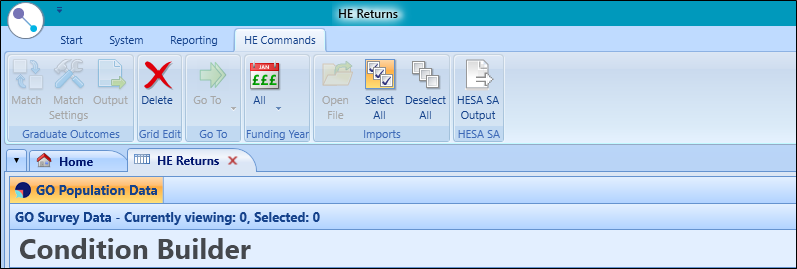
To open the HESA Student Return module, select the HESA Student button on the Start ribbon.

The HE Returns screen is displayed.
 Output HESA Student by Funding Year
To output HESA student data by Funding Year:
-
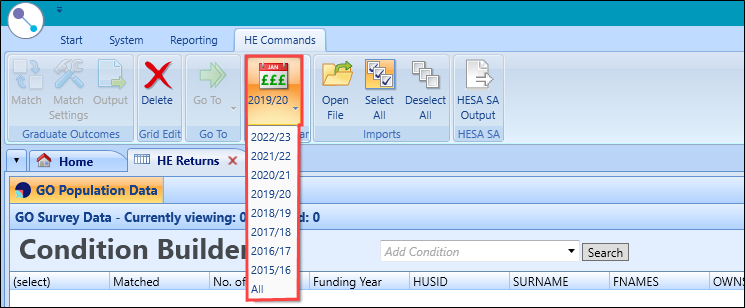
Select the Funding Year button on the HE Commands ribbon and select the relevant year from the drop-down list.
-
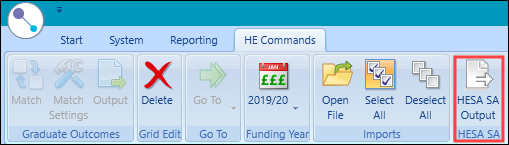
Select the Output button.
The Output window is displayed.
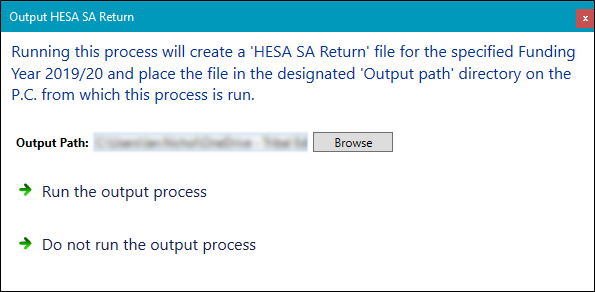
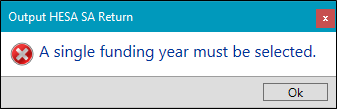
If you have selected 'All' from the Funding Year drop-down list, an error message is displayed.
-
Select the Browse button
The Browse for Folder window is displayed.
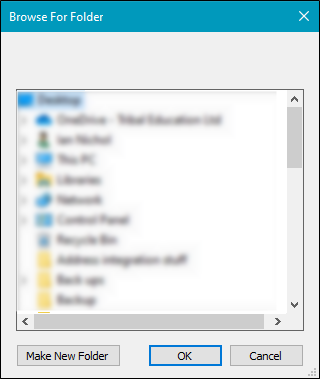
Navigate to a suitable folder location to save the file or select the Make New Folder button to create a new folder.
- Select OK .
-
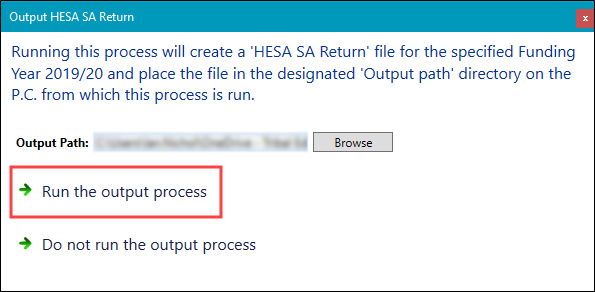
Select Run the output process .
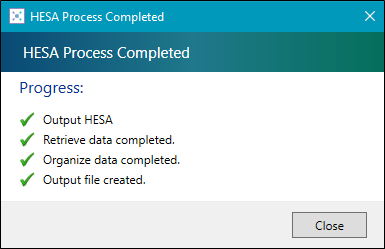
The process window displays progress and indicates when the process is complete.
-
SelectClose .
The output file is then saved and can be validated before being sent to HESA.
HESA files are output with the format 'CRECIDUKPRN-SYSDATE.XML', where:
- C - output file prefix letter
- RECID - the funding year concatenated with 054 (for example: 19054)
-
UKPRN - the United Kingdom (UK) provider reference number (for example: 10011327)
Important.Refer to the HESA website for further information about the UKPRN field. - SYSDATE - the date format dd-mm-yy-hh-mm-ss (for example: 26-03-2020-13-15-32)
- XML - the file format
For example: C1905410011327-26-03-2020-13-15-32.XML.
Validate the HESA output file
The HESA XML validation kit helps prepare your output data for return. The validation kit provides a description and location of errors found in your output file.